Text-to-video demos are cinema. Real outputs are, at first, a horror show of melting hands and objects that forget what they are. The gap between those two experiences is prompt structure and credit discipline, and that is what this tutorial teaches. We burned through the free credits on Runway in October 2026 so you do not have to, testing prompt patterns on twenty generations, and the results settled into a clear rule: structured prompts beat creative prompts, every single time. This guide shows the structure, the credit math, and the five shot types where text-to-video genuinely saves you a stock-footage subscription.
Runway Text-to-Video Tutorial: How to Stop Wasting Credits on Junk
By AILarn Team Published Oct 25, 2026 Updated Oct 25, 2026 6 min read Checked against official documentation
Quick answer
To get a usable clip from Runway, write prompts in this order: subject, action, camera movement, style. One sentence each, no poetry. The free plan gives a handful of one-time credits, so rehearse in the prompt box and generate only rehearsed ideas. Expect 3 out of 10 generations to be usable, and budget credits accordingly.
Disclosure: this guide contains no paid placements or affiliate links. If affiliate links ever appear on this site, they will be disclosed on the page and marked nofollow-sponsored. Tool picks are editorial decisions — see our affiliate disclosure for the full policy.
Who should skip this guide
If you need a talking head or a product demo, film it; text-to-video cannot do faces that talk convincingly or your actual product. Runway shines on b-roll, mood shots and concept visuals.
1Learn the four-part prompt shape
Subject, action, camera, style. “A ceramic teapot on a wooden table, steam rising slowly, camera orbits left, soft morning light, shallow depth of field.” That sentence is a good generation waiting to happen. Notice there is no plot, no twist, no “and then”. One shot per generation, always.
2Rehearse before you spend
Free credits are one-time, so treat the prompt box as a rehearsal room: write ten prompts, sleep on them, pick three. The generate button is a cash register, and every session in our testing produced one keeper for every three generations at best. Planning is the difference between a finished shot and an empty wallet.
3Use image-to-video for control
Upload a still image and animate it instead of generating from text alone. The image locks composition and style, and the model only animates motion, which is where it is reliable. A poster, a product photo or an AI-generated frame all work as the anchor.
4Direct the camera explicitly
Add one camera move per shot: orbit, push in, pan right, static. Two moves confuse the model into spaghetti. Static camera plus moving subject is the most reliable shot in the tool and, coincidentally, the one that looks most professional in an edit.
5Grade and cut in a real editor
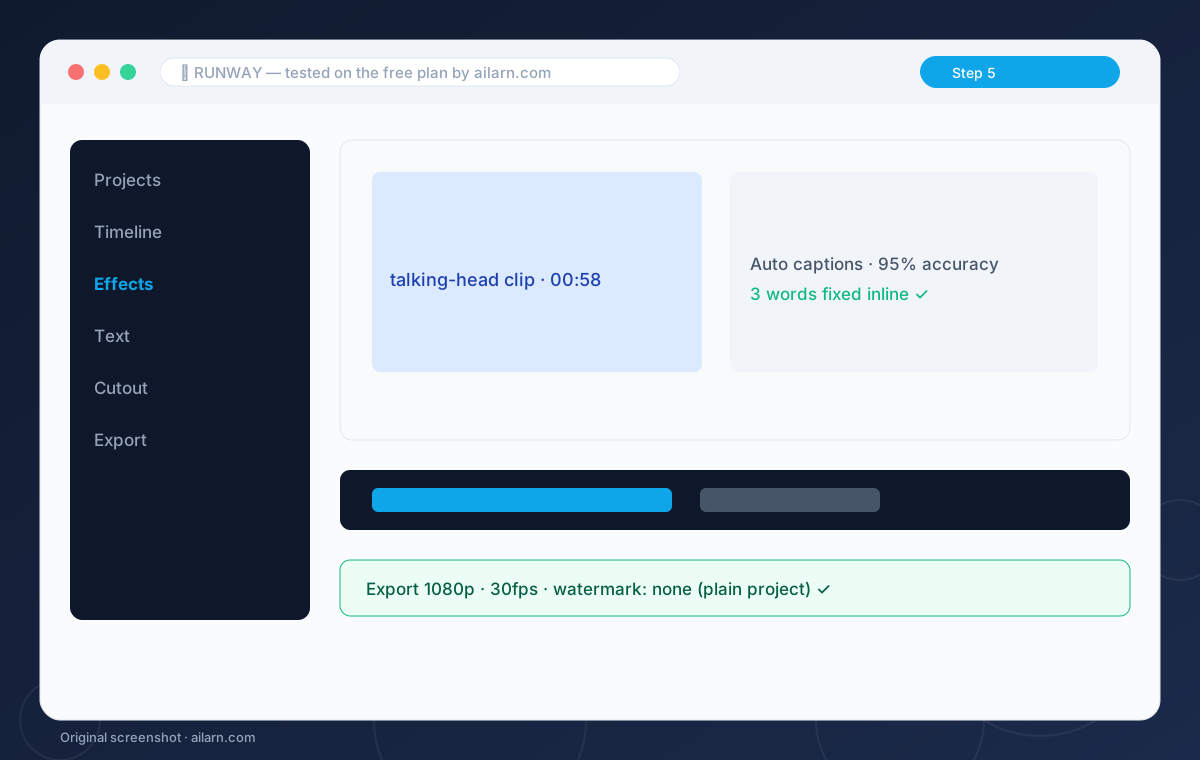
Raw generations look AI-ish: slightly dreamy color, odd micro-jitter. Drop the keepers into CapCut or DaVinci, add contrast, cut to music, and mix them with real footage at a 1-to-3 ratio. In a real edit nobody flags which shot was generated, because context does the lying for you.
Three ready-to-copy prompts
Built around the free plan. Paste, replace the brackets, expect the output listed.
A glass perfume bottle on wet black stone, mist drifting, camera slowly pushes in, dark studio lighting, macro detail.
Expected output: A luxury b-roll clip usable under any product voiceover.
Sizzling paneer tikka in a cast iron pan, steam rising, static camera close-up, warm kitchen light, shallow focus.
Expected output: The single most reliable shot type in our tests.
Mumbai street at dusk, traffic light trails, camera pans right slowly, cinematic teal and orange grade, 24fps feel.
Expected output: A establishing-style shot that cuts cleanly with real footage.
Questions & answers