Copilot is the coding assistant most schools and internships quietly assume you have, and the one nobody teaches. The setup takes four minutes; the habits take a week, and the habits are the whole difference between a helpful pair programmer and an autocomplete that writes confident nonsense. This tutorial covers the install, the three habits that keep suggestions honest, and the hallucinated-library check that has saved us from fake npm packages more times than we admit. Written from GitHub Copilot's official VS Code setup documentation; checked November 2026, on the free student plan. The scraper example matters because it shows both the best and worst of Copilot within ten minutes of work.
GitHub Copilot for Beginners: Setup, Habits and the Free Student Plan
By AILarn Team Published Oct 25, 2026 Updated Oct 25, 2026 7 min read Checked against official documentation
Quick answer
To start with GitHub Copilot, install the extension in VS Code, sign in with GitHub, and open any project file: suggestions appear as ghost text as you type. Accept with Tab, adjust with your own edits, and write a comment describing the function before it to steer the code. Students get Copilot free through the GitHub Student Developer Pack.
Disclosure: this guide contains no paid placements or affiliate links. If affiliate links ever appear on this site, they will be disclosed on the page and marked nofollow-sponsored. Tool picks are editorial decisions — see our affiliate disclosure for the full policy.
Who should skip this guide
Developers who already run a full AI coding setup with an API key and their own rules files will find Copilot limited. This guide is for the first-assistant user, including students and career switchers.
1Install and sign in
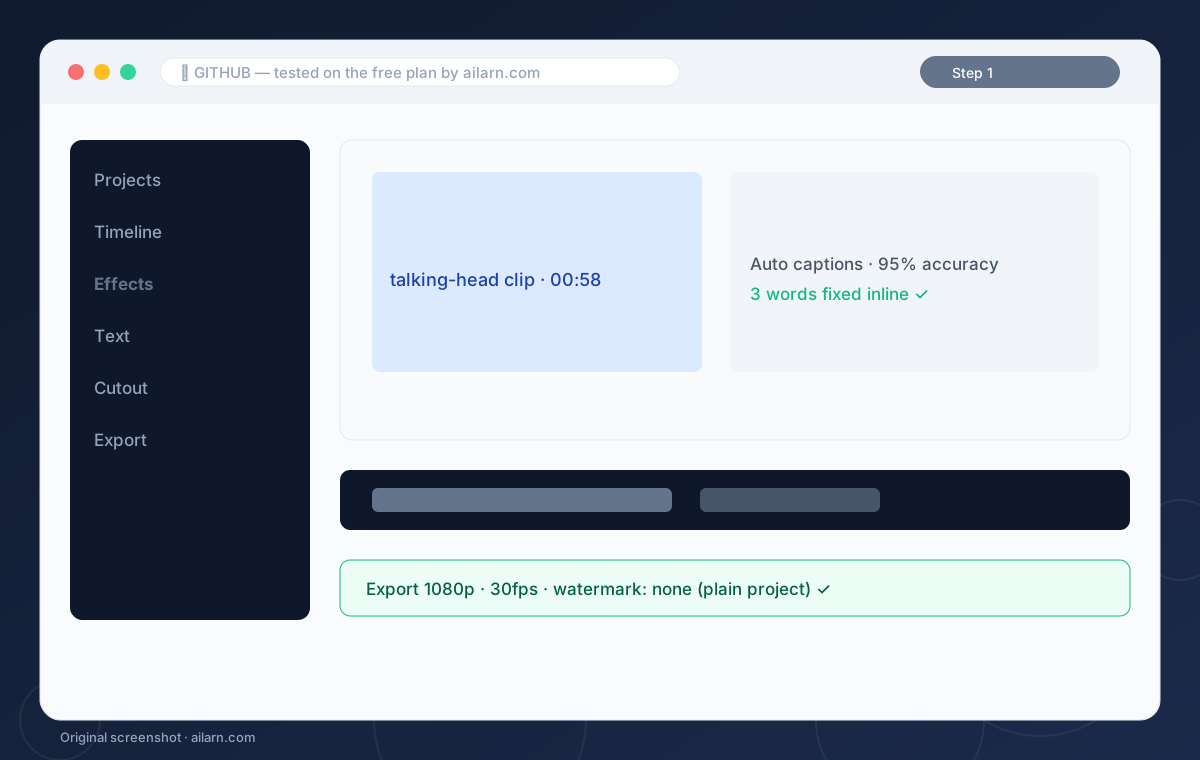
Open VS Code, search extensions for GitHub Copilot, install, and click the sign-in prompt. GitHub opens a browser, you approve, done. The free plan for verified students includes Copilot with the chat panel; everyone else gets a one-time trial, and the Pro tier is 10 dollars a month.
2Comment first, code second
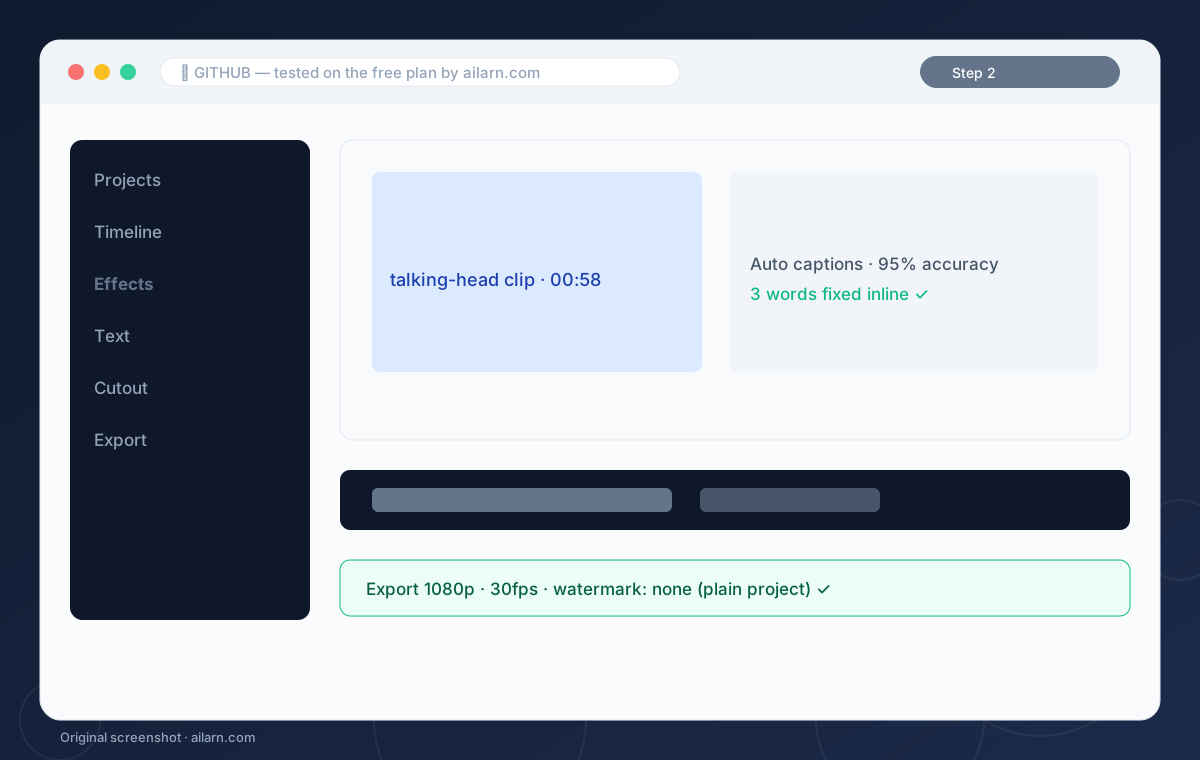
The single habit that changes everything: write a plain-English comment describing the function, then start typing its signature. Copilot fills from the comment. “Fetch products from the API and return only items in stock under 500 rupees, sorted by price” produces exactly that; a bare function name produces a guess.
3Accept nothing you cannot explain
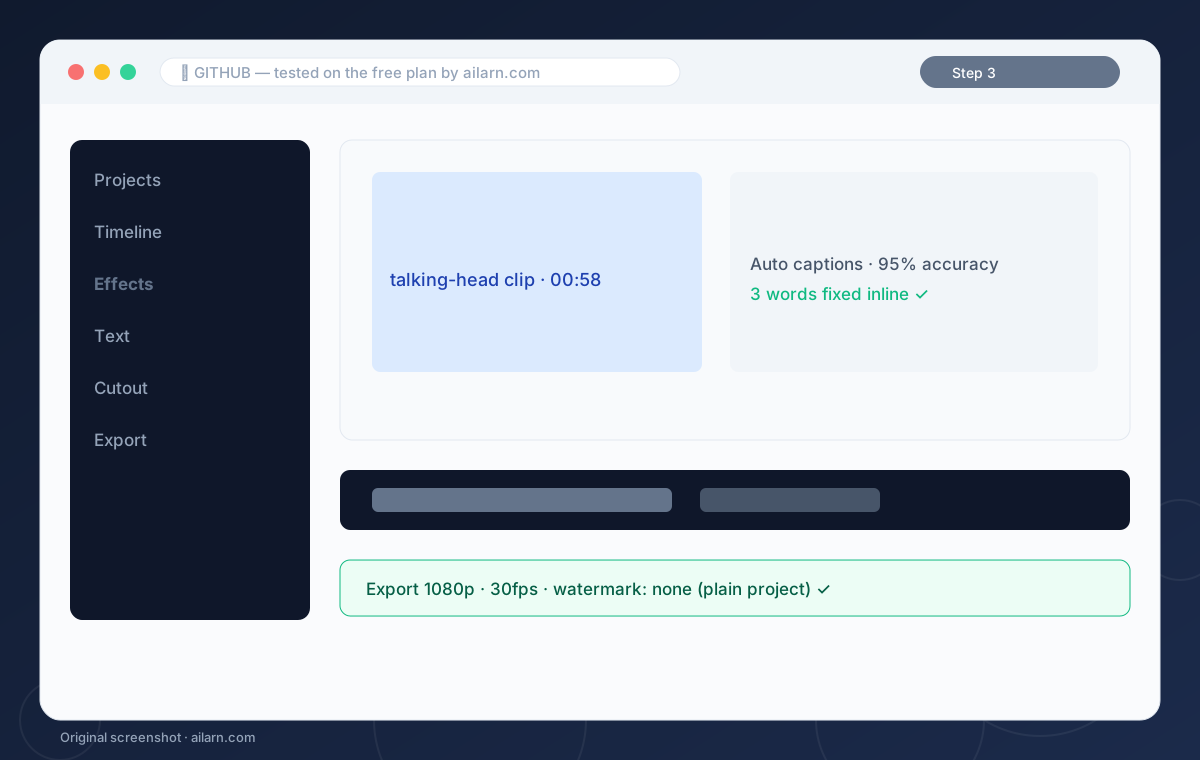
Tab-accept, then read the line it wrote. If you cannot say what it does out loud, hover Copilot Chat and ask “explain this line”. Beginners who skip this build projects they cannot debug, which is how people quit. Thirty seconds per accepted block is the price of staying in charge.
4Run the hallucination check
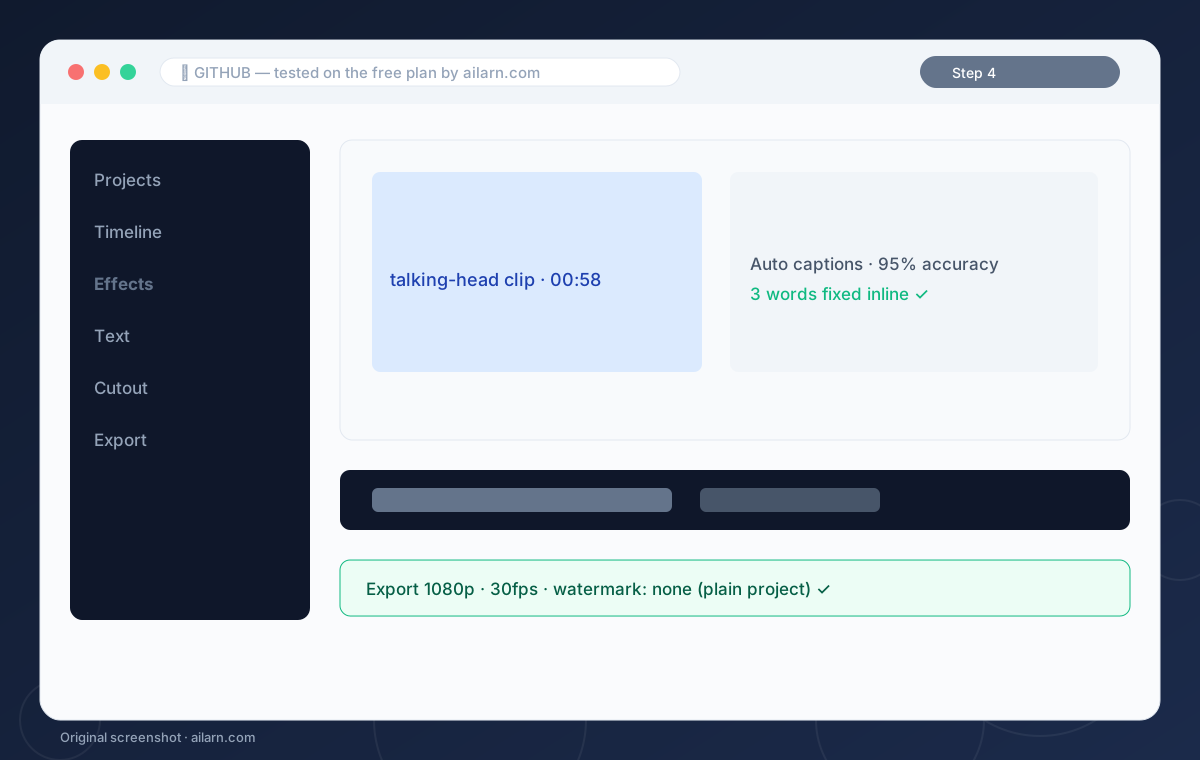
When Copilot imports a library you have never heard of, assume it does not exist until proven otherwise. Paste the package name into npm or your language’s registry. In our comparison week it invented two plausible-looking packages; both were npm 404s. This check takes ten seconds and saves an hour of a very specific kind of confusion.
5Use Chat for the error, not the docs
When the terminal throws an error, select it, open Copilot Chat, and paste with the words “explain and fix”. The model reads your open files, so the fix usually lands in context. In our scraper test this flow debugged a header-auth problem in one exchange, where the old way is a forum and a prayer.
Three ready-to-copy prompts
Built around the free plan. Paste, replace the brackets, expect the output listed.
// Express route: POST /orders, validates body with zod, inserts into Postgres, returns 201 with the row. Handle duplicate SKU with 409.
Expected output: A complete handler that compiles on the first accept.
Explain this function line by line as if I am a first-year student. Flag anything suspicious: [paste].
Expected output: A line-by-line walkthrough with risks called out.
// Write Jest tests for the function above: happy path, empty input, and network failure.
Expected output: Three passing test skeletons you tighten up yourself.
Questions & answers