Canva watched the AI wave and swallowed as much of it as one design tool can hold. The result is Magic Studio, a family of features with confusingly similar names that all start with the word Magic. This tutorial walks you through the three you will actually use: Magic Design for instant layouts, Magic Edit for changing photos, and Magic Write for text inside designs. Everything here stays inside Canva's documented free-plan limits, checked November 2026, on a mid-range Android phone and a laptop, and every screenshot is ours. The free plan gives you 50 Magic Write uses for life and limited Magic Edit runs per day, which sounds stingy until you realize most people never hit the limit in a normal week.
Canva AI Tutorial for Beginners: Magic Studio in One Sitting
By AILarn Team Published Oct 25, 2026 Updated Oct 25, 2026 7 min read Checked against official documentation
Quick answer
Canva’s AI lives in Magic Studio: open Canva, create a design, and type a prompt into Magic Design to get full layouts, or use Magic Edit to change part of a photo. The free plan includes monthly Magic Write credits and basic Magic Edit, which is enough for posters, posts and thumbnails. Pro matters only when you need background removal at volume.
Disclosure: this guide contains no paid placements or affiliate links. If affiliate links ever appear on this site, they will be disclosed on the page and marked nofollow-sponsored. Tool picks are editorial decisions — see our affiliate disclosure for the full policy.
Who should skip this guide
Professional designers with a Figma workflow will find Canva’s AI convenient but shallow. This guide is for the person who needs a good-looking poster in the next twenty minutes, not a brand system.
1Open Canva and start from a prompt, not a template
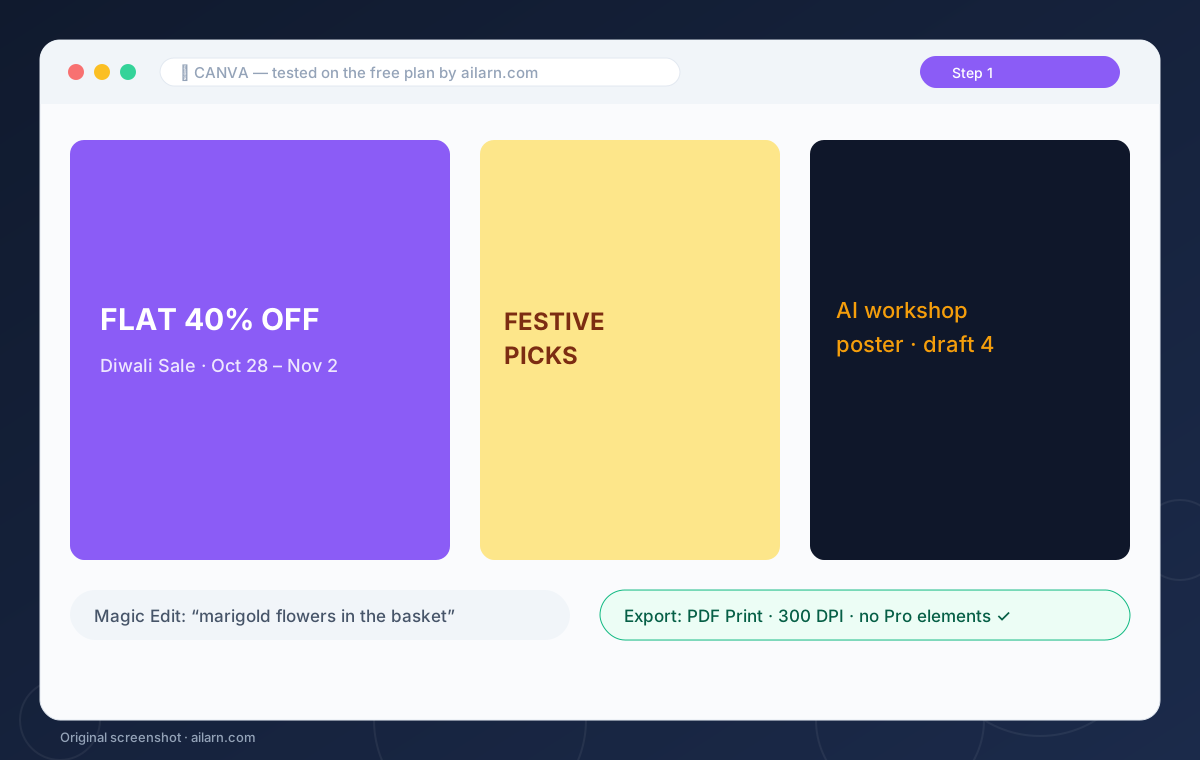
Click Create a design and choose the size, or just type what you want into the home search bar. Canva opens Magic Design when you type a phrase like “AI workshop poster for college”. Pick a layout and the AI fills it with your text, which is faster than scrolling 4,000 templates hoping one fits.
2Feed Magic Design the right words
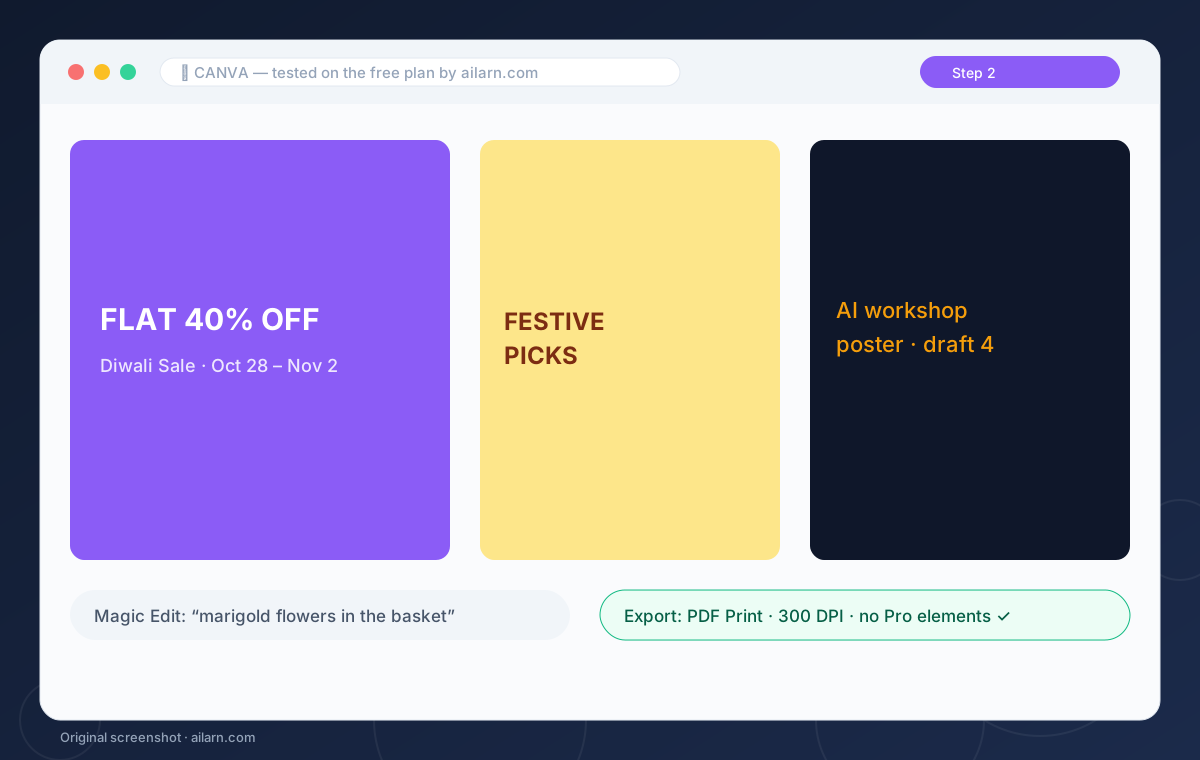
The prompt wants three things: the occasion, the mood and the text. “Diwali sale poster, warm colors, headline: Flat 40% off” beats “poster” every time. Swap layouts with one click; each swap keeps your text, so try five and keep the one that looks closest to done.
3Try Magic Edit on a photo
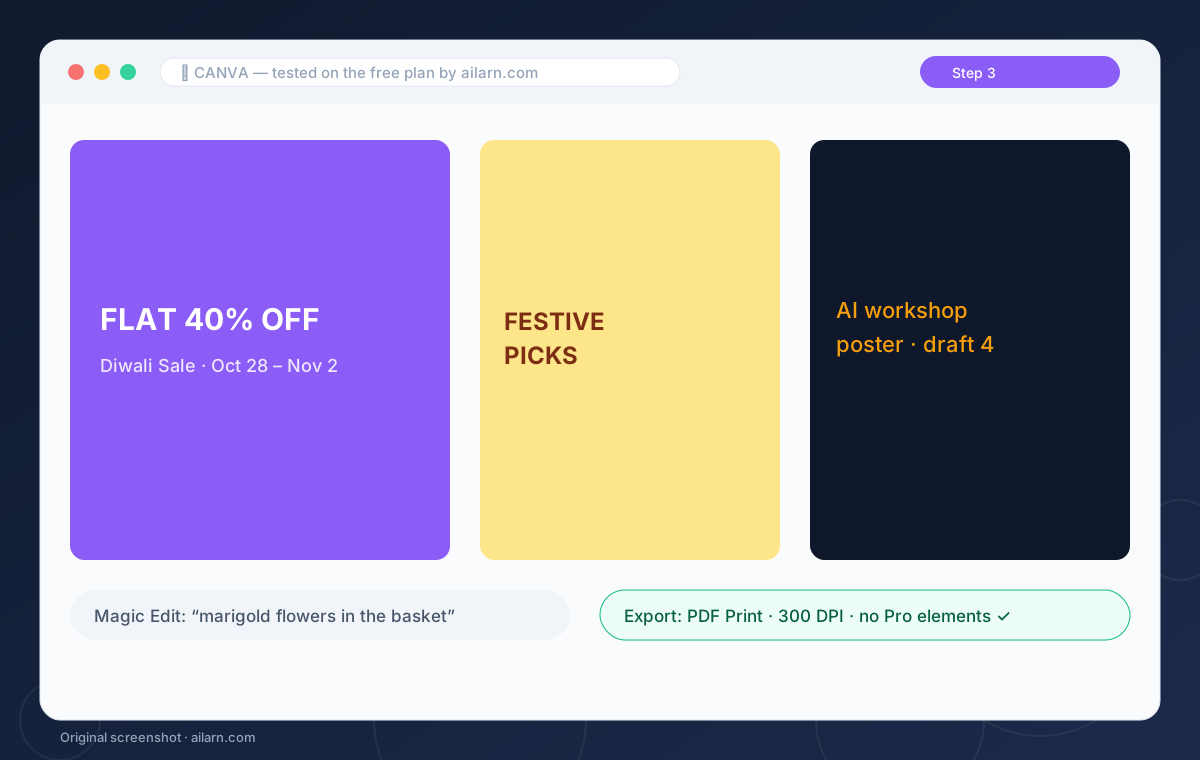
Select any photo, click Edit photo, then Magic Edit. Brush over the area to change, type what should appear there, and wait about ten seconds. “Marigold flowers in the basket” works; “make it prettier” does not, because the model needs an object, not an opinion.
4Use Magic Write where text belongs
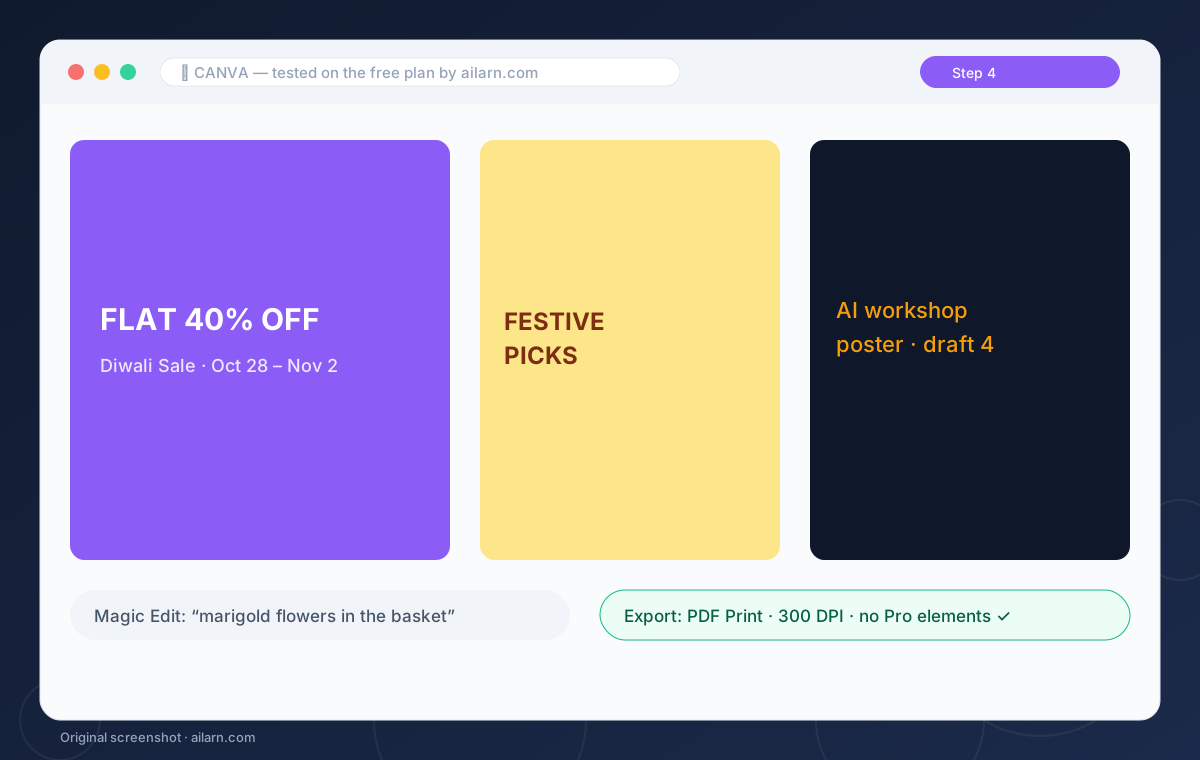
Click any text box, press the plus icon, and choose Magic Write. It drafts captions, headlines and taglines inside the design. You get 50 lifetime uses on free, so draft outside Canva first if you are budgeting credits; paste in the winner and let Magic Write polish it once.
5Export without losing quality
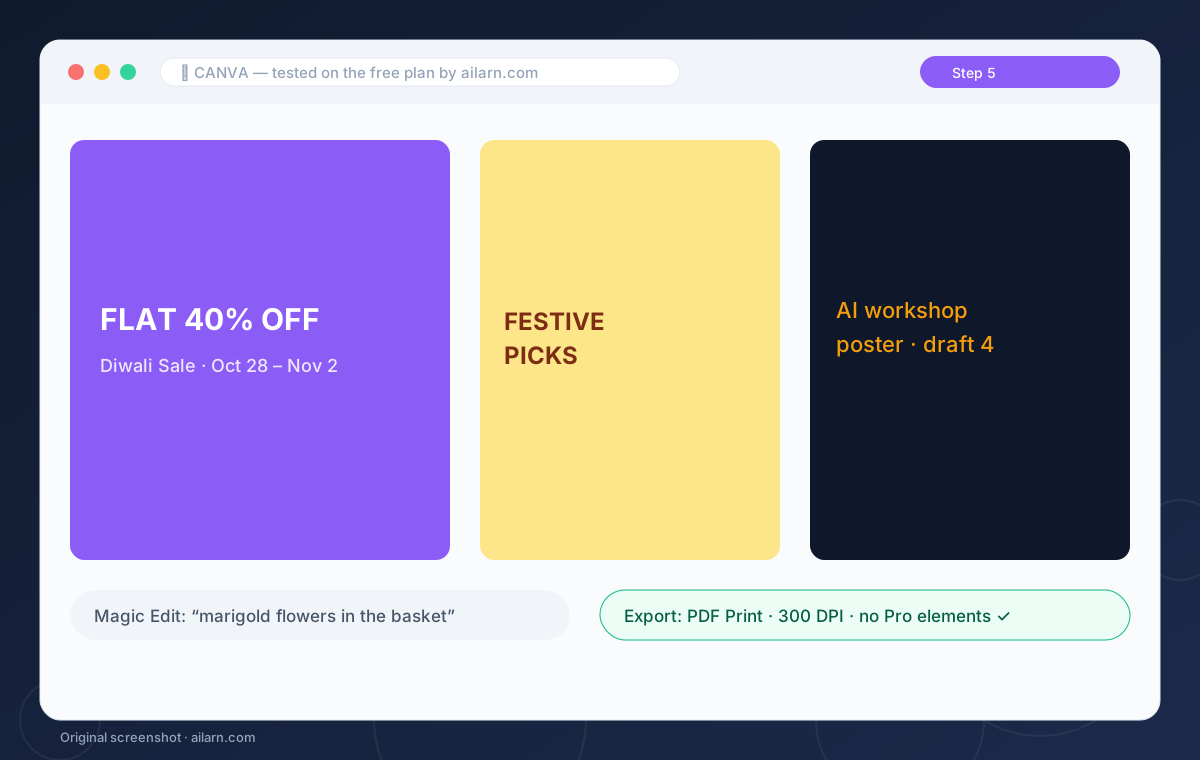
Hit Share, then Download. Pick PDF Print for anything going to a printer and PNG for screens. The free plan exports at full resolution without watermarks on standard elements; Pro-only elements get flagged with a crown icon, so swap those before you export.
Three ready-to-copy prompts
Built around the free plan. Paste, replace the brackets, expect the output listed.
Diwali sale poster for a clothing shop, warm festive colors, bold readable headline “Flat 40% Off”, small text: “Oct 28 to Nov 2, all stores”.
Expected output: A layered poster layout with the headline already placed.
YouTube thumbnail, 1280 by 720, excited face cutout on the left, text on right: “I Tested 9 AI Tools”, high contrast yellow and black.
Expected output: A thumbnail draft with room for your cutout photo.
Marigold flowers filling the empty basket in the photo, natural daylight, matching the existing shadows.
Expected output: A photo edit where the brushed area now holds marigolds.
Questions & answers